Showing posts with label Windows. Show all posts

Monday, July 7, 2008

Splitting Worksheet Windows

The question came up recently “How do you split the window in Excel so you can see a spreadsheet (usually referred to as a worksheet) in two different windows.” There are several answers depending on your needs.

  1. After loading a document (workbook) in Excel 2007, go to the View tab and select the Split option. The current document window will be split and you can scroll either window (on the same document) independently of the other.
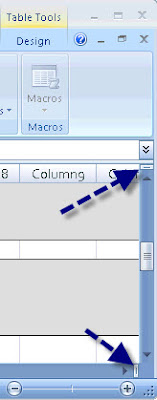
  2. Also there are splitter handles at the top of the vertical scrollbar and at the right end of the horizontal scrollbar. Click and drag one of them with the mouse and it will split the window. Again, this only lets you look at two parts of a single worksheet at one time, It won't, for instance, let you look at parts of different worksheets at the same time (whether they’re from the same Excel workbook or not).

  3. If you want separate windows showing different parts of the same workbook (including different worksheets), use the New Window button on the View tab (the third icon to the left of the Split icon on the View tab).

  4. Now if you want two instances of Excel so you can run them in separate windows and see the same or different worksheets displayed in each window, just launch Excel directly, rather than launching it by opening a file. If you use the second instance to open a file you already have open in the first instance, the access in the second instance will be read only.

Thanks to Saul Epstein, Ed Lovitt, Tracy Newman and Michael Rea who contributed to the information included in this tip.

Friday, February 1, 2008

Multiple Windows, Multiple Options

Unwanted pop-up windows can be a pest but you can use this capability (having multiple windows open) to your advantage too. In any version of Windows, you can open multiple occurrences of the same application or have multiple applications running simultaneously. I often see computer users close one application to open another and it's rarely necessary.

Just be aware that you can use the Alt+Tab key combination to jump easily from one open application or window to the next. If you have multiple applications open, hold down the Alt key and press Tab to cycle through those open applications. You'll see a little window appear in the middle of your screen with icons representing each open application. As each is highlighted (by pressing Tab again), you'll see a description of that application (such as "Memo.doc -Microsoft Word" or "Inbox - Microsoft Outlook"). Release the Alt and Tab keys when you highlight the application or window to which you want to jump.

You can also click on one of the tabs on the Task Bar (bottom of the screen) to jump quickly between applications. The tabs are labeled with the name (or an abbreviation) representing the "process" running in that window.

When would you want to run multiple occurrences of the same application? How about if you want to copy files from one location to another without scrolling upon and down a long list of folders? Simply open two occurrences of Microsoft Explorer--one pointed at the source folder and the other at the target folder.

Wednesday, January 23, 2008

Keyboard Shortcuts

If there are actions you perform repeatedly in one of the Microsoft Office applications or in Microsoft Windows, you can often save considerable time by using a keyboard shortcut, rather than re-positioning the mouse pointer and clicking. Microsoft offers a nice web site with all of the shortcuts listed. Check out: http://www.microsoft.com/athome/moredone/compshortcuts.mspx.

Some of the more common and helpful short cuts include:

  • Ctrl+C to copy selected text
  • Ctrl+X to cut selected text
  • Ctrl+V to paste selected text
  • Ctrl+S to save

Mac users can substitute the Command (Open Apple) key for Ctrl.

My Blog List