Wednesday, January 21, 2009

Capturing YouTube Video to Your Desktop

From time to time, we receive requests from faculty regarding capturing video from the web (typically YouTube or TeacherTube clips) to their desktop for use in class. The reasons include:
  • Slow web access times
  • Insurance that the video clip will be available for class use and not disappear or be withdrawn
  • The need to extract a segment and not use the entire video.

There are many tools available to capture video from the web (your students probably know about more tools than you and I ever will) and it’s important to review each use to be sure it complies with educational fair use (use the "Four Factor Analysis"). If the usage is appropriate and does not infringe on copyright, you can go to http://www.techcrunch.com/get-youtube-movie/, enter the URL for the video and click the Get Video button to start the download. The download frequently takes less time than playing the video over the web. Just be sure you save the file using the .flv (Flash video) file extension.

By the way, some YouTube videos, such as President Elect Obama’s weekly addresses, now have a download option (just under the left lower corner of the video image space). It provides access to a H.264 encoded version that can be downloaded and played later offline.

Saturday, January 17, 2009

Zamzar: Online File Conversion

A faculty member recently inquired "My office computer used to be able to read Works, but that capability seems to have disappeared with the appearance of Word 2007. Can someone point me to what I need to do to get Works working for me?"

As a test, she sent me a couple files and I went to http://www.zamzar.com/ and easily converted them. The site is loaded with pop-ups and advertising (and it you stay on the site long enough, your computer will start talking to you ("you've won..."). Just ignore all that and you'll see the 4-step process to convert a file from one format to another. In this case, I converted a .wps file to a .doc.

Zamzar can convert to and from a variety of formats (video, graphic image, document, music, archive). Once you make your selection and identify the file, Zamzar uploads it and then emails you the converted file. There are file size limits (depending on the type of file) and it does take a few minutes to convert and then email the converted file to you.

As always, use at your own risk. I would not use for highly sensitive data (there's a copy out there somewhere) that might be used or abused. Zamzar will of course try to sell you a premium service. It's an option if you use the service frequently and want faster turn-around.

Wednesday, January 14, 2009

TinyURL.com Equals Short Web Links

Have you ever sent an email message that included a long, indecipherable URL (web link) that broke across two lines so it didn't work for the recipient of your message? If so, there's a free, easy to use service sponsored by Gilby Productions that converts those long web links to a short (tiny) URL that'll always work.

You can go to http://tinyurl.com, enter the long URL in the text box at the top of the page and it'll generate a tiny URL that begins with http://tinyurl.com/. The new link never expires, so you can use it whenever you wish (in email or on web pages).

You can also add TinyURL to your Internet Explorer Links menu (how to do so is explained at http://tinyurl.com). Once added, you can navigate to any site and generate a TinyURL instantly for that site using your Links menu.

As an example, here's a moderately long URL to a Wikipedia article on the birth of modern copyright:
http://en.wikipedia.org/wiki/History_of_copyright_law#The_birth_of_modern_copyright

The TinyURL for the same site is:
http://tinyurl.com/8m7wel

Obviously the longer the original URL, the more "character" savings you'll encounter.

Friday, November 14, 2008

Publish A Book with Oprah's Help

Have you ever considered publishing:
  • A family history (a little text, lots of photos) or
  • A collection of your child’s baby pictures or
  • A hardcover of your child’s drawings or
  • A hardcover collection of student work (e.g. a hardcopy portfolio) or
  • A history of your company, department or organization with images and text?

If you’ve ever considered archiving images and text in a hardcover format that can be preserved on your bookcase, you have a chance to do so for almost free. Peter Walsh (an organization specialist; e.g., how to organize your home and your life) appeared on Oprah yesterday. As part of his appearance, SnapFish is offering a coupon (through today, Friday, November 14) which must be redeemed by Sunday November 16 that covers the production cost of an 8x11” custom cover photo book (20 pages). Check out http://www.oprah.com/slideshow/oprahshow/20081029_tows_messyhouse/7 for the details.

I’ve used other book publishers for this type of hardcover project but not SnapFish. Now’s your chance (and mine) to test them out and pay only shipping and handling.

Tuesday, October 21, 2008

Buried in Email

Remember the good old days when receiving an email message was new and exciting? It was an exhilarating experience to send and receive those instantaneous messages and we started referring insultingly to regular U.S. Post Office mail as “snail mail.” Oh, for the good ole days. The business and technology research firm Basex recently reported (in "Information Overload: We Have Met the Enemy and He Is Us") that the average employee in the United States receives 200 email messages a day. Here’s a case where you may want to strive to be “below average.”

A recent article in eschoolnews listed six techniques for handling the volume of email messages. Let me share just one: when you first arrive at work, avoid the temptation to immediately check email. Instead identify the top priority that you need to accomplish for the day and tackle it. Check email later, so you avoid using email as an excuse for postponing more pressing issues. Are you curious about the remaining suggestions? Check out: http://www.eschoolnews.com/news/top-news/index.cfm?i=55435.

Monday, October 20, 2008

In these Financial Times--Check Your Credit (Online)

You’ve probably heard numerous times that you have access to free annual credit reports from the three big credit reporting agencies (Experian, Equifax and TransUnion). What you may not know is that you can access (that is request) your credit reports from a single site: http://annualcreditreport.com. In fact, it’s better to request from the http://annualcreditreport.com site, because it’s a bit easier to get the “free” report as opposed to going down the wrong path and subscribing to credit reporting services that you may not need. The centralized site enables you to transfer seamlessly between each of the three credit reporting sites (and you do want to check all three reports) and then bounce back to the central location after requesting, viewing or ordering your reports. As you go through the process you can spend money (to get your credit score, to get credit alerts, and so on) but it’s not really necessary unless your circumstances (or curiosity) dictate the need.

When I originally requested these reports a couple years ago, I found major errors on two of the three reports. If you have grownup children and have ever cosigned a lease or loan or guaranteed a phone bill, you may find their finances still intertwined on the credit report with yours; even though they’re married and over a decade has passed. Sadly based on the changes I reported, I no longer have residences in three cities in two states; but I’m also free of multiple rent and mortgage responsibilities.

In a time when credit is tight, identify theft is a reality, and safeguarding your credit rating is crucial, it may be worth the time to request your current credit report.

Tuesday, September 23, 2008

Check Out Your Bank

With the nation’s financial crisis making headlines, it makes sense to use the technology to assist in making financial decisions. So, use your browser to visit http://www.bankrate.com/ and check out the rating for the bank, thrift or credit union where you store your money each payday.

Once you arrive at the bankrate.com site, look for the “Is Your Bank Safe” article under the Spotlight banner. The text “Safe and Sound Ratings” is a link to a page where you can start your search. First you’ll select whether you want to search banks/thrifts or credit unions. After making your choice and selecting the Next button, you’ll narrow the search by zip code, state, starting alpha character (e.g., the institution’s name) or other criteria. Follow the on-screen instructions and you’ll end up with the Safe & Sound CAEL rating (the lower the number, the better, but 1, 2 or 3 is considered good) or the Star Rating (more stars are better with 5 stars being tops) for the bank, thrift or credit union you select. See http://www.bankrate.com/brm/safesound/cael_explain.asp for more details on the rating systems.

Put technology to work on checking out your bank’s rating.

Monday, September 8, 2008

Fact Checkers

I received yet another email message from the Department of the Treasury this morning stating I have a $189.60 tax refund coming (I only need to click on a link that goes to an AOL site!). That coupled with similar messages received a month ago mean I can fill up my car this week. But I won’t really count on it.

There are two sites that have been very handy lately. Both enable me to check the facts. The first is www.snopes.com where I often check various email “facts” such as:
  • Presidential candidate Barack Obama is a “radical Muslim” (false),
  • Presidential candidate John McCain declared during a 60 Minutes interview that he was a “war criminal” who “bombed innocent women and children” (false),
  • The USS New York was made using steel from the World Trade Center (true),
  • You can cook an egg or popcorn if placed between two activated cell phones (false), and
  • That an email greeting card from a family member may include a malicious virus (true, but generally only unpatched Windows-based systems are vulnerable and to infect your system you must click a link that goes to server with malware). Note, always hover over any link in any message and if the web address displayed on your status bar is inconsistent with a real online greeting card site (such as www.hallmark.com or www.egreetings.com or www.bluemountain.com) or the site you expect the link to go to, don’t go there.

The other site I use to check facts is http://www.factcheck.org/. The site is a project of the Annenberg Public Policy Center of the University of Pennsylvania and identifies itself as “a nonpartisan, nonprofit, ‘consumer advocate’ for voters that aims to reduce the level of deception and confusion in U.S. politics.” The Annenberg Political Fact Check monitors “the factual accuracy of what is said by major U.S. political players in the form of TV ads, debates, speeches, interviews, and news releases.” Their goal “is to apply the best practices of both journalism and scholarship, and to increase public knowledge and understanding.”

So check your facts…before you pass them on.

Tuesday, September 2, 2008

Microsoft Office Help

Microsoft publishes an online newsletter (the Microsoft Office Insider) with tips, news, latest support articles, templates and clip art. To subscribe, check out http://office.microsoft.com/en-us/help/HA101864261033.aspx. As an example, the August issue includes the following tip:

Do you e-mail documents to yourself or others?
There's a new development that's faster and easier. Download this plug-in for Microsoft Office Word, Excel, and PowerPoint and save documents to a free Workspace on the web. Access, view, and share documents with the people you invite - anytime! Here's the free plug-in. http://go.microsoft.com/?linkid=9382158. What's a Workspace? http://go.microsoft.com/?linkid=9382159.

Saturday, August 23, 2008

"Virtual" Student Response Systems

Yesterday’s tip talked about clickers in the classroom (see http://technotipster.blogspot.com/2008/08/clickers-in-classroom.html) and mentioned ResponseWare Web. That’s a “revolutionary” new response system that enables classroom or audience participants to engage in polling using a mobile device (PDA, cell phone), laptop, desktop or handheld clicker from TurningPoint Technologies. “As a web-based polling application, ResponseWare Web allows participants to submit responses via any device with access to the internet and immediately transfers results to TurningPoint's interactive polling slides” (see http://www.turningtechnologies.com/governmentnonprofitinteractivepresentation/governmentresponsewareweb.cfm).

It’s important to note that you can “mix and match” response devices. Whether participants are students in a classroom, committee members in a face-to-face meeting or remote conferees (connected via a webinar session or conference call); the presenter, chair or speaker can gather anonymous feedback from participants:
  • If responders are using a device that connects to the web (cell phone, PDA, laptop), either in the meeting or remotely or
  • If responders are using a TurningPoint clicker (either RF or XR) and located in the same location as the speaker (within range of the TurningPoint access point).

“Without using their voices” this product enables anonymous audience participation. After allowing a period for polling, the speaker, instructor, chair, or facilitator can display a graph of the polling results with percentages or counts using TurningPoint 2008 (works with PowerPoint) or TurningPoint Anywhere 2008 (works as an overlay with any application or web page).

Response devices that can be used instead of a handheld clicker include the Apple® iPhone™, a Blackberry®, a smartphone using Windows Mobile 5.0 or above, or any laptop or standard computer with wired or wireless access to the Web.

Using this technology, you can move along the agenda and gather feedback whether your “audience” is face-to-face or in remote sites; e.g., students in classrooms, students in distance learning courses, committee members teleconferencing from remote sites, and so on.

Thursday, August 21, 2008

Clickers in the Classroom

Student response systems (affectionately called clickers) are being integrated into instruction at both the high school and college level. This semester, we have over 20 faculty members at JCCC using the TurningPoint clicker system. TurningPoint Technologies offers three different applications for use with their clicker system: TurningPoint 2008 (which works hand-in-hand with PowerPoint to add special interactive slides with questions and then displays the responses received from students in graph form), TurningPoint Anywhere 2008 (which overlays any computer application and can be used to poll, survey, collect and display student responses; e.g., you can use the overlay on top of a screen displaying a Word document, a web site, an Excel document, or literally any application), and ResponseWare Web (which collects student responses using a web site; that is, it can be used in a classroom where all students have access to a computer or it can be used when students have their own wireless laptop or cell phone with Internet access). ResponseWare Web can also be used with distance learning students, since only web access is required…no student clicker is needed..

If you’re one of those faculty members using TurningPoint, one of the first lessons we try to teach is that after installing the software, users should set the default option for the TurningPoint 2008 add-in to always appear in PowerPoint. If you do so, you don’t need to open TurningPoint 2008 and then open a PowerPoint slideshow. With the option set, you can simply open PowerPoint and the TurningPoint 2008 add-in is loaded automatically and available. To turn on this setting:

  1. Open TurningPoint 2008.
  2. Select the TurningPoint tab (in Office 2007 version).
  3. Select the Tools > Settings command.
  4. In the Presentation settings (select in the left panel), under the Misc section (you’ll need to scroll down in the right panel), change the value for “Add-In always loaded” to True (click on the word False and use the drop-down to select True).
  5. Click Done (bottom of window).

You only have to do this once and then TurningPoint will always be loaded when you start PowerPoint. Then you can dispense with the TurningPoint desktop shortcut if you wish.

Wednesday, August 20, 2008

Sharing & Finding PowerPoint Slideshows

A basic premise of Web 2.0 is that users collaborate, publish and share digital resources. Slideshare qualifies because it is a repository of PowerPoint slideshows that are contributed by the creators, can be viewed, downloaded and used by others (as always giving credit is both neighborly, judicious and appropriate). http://www.slideshare.net/ is a searchable archive of slideshows covering topics from Aljazeera to the Olympics to Zoology and everything inbetween. Visit the site, use the search box to enter a keyword (“copyright,” “web 2.0,” “conflict management,” or whatever) for the topic you’re researching and you’ll (probably) find a host of slideshows.

Once you locate the topic you seek, you can view the slideshow (clicking through a page at a time), display it full screen, download it, and leave comments (or view the comments of others). If you create an account and log-in, you can upload your own slideshows (if you want to share them; in PDF, PPT, PPS, POT, ODP or keynote format), locate and download presentations (if the creator enables the download), embed slideshows in a blog or website, and create a slidecast by linking your slides to an audio track. You can also enroll in a “group” and receive email alerts when anyone posts a slideshow or message related to that topic.

To check out a couple slideshows I’ve posted on “Web 2.0” and “copyright,” see http://www.slideshare.net/jbacon.

Tuesday, August 19, 2008

Mind-Mapping & Web 2.0

What tools are available for instructors to develop instructional materials or for use in instruction? How do you locate one of the plethora of Web 2.0 apps that meet your instructional or course development needs? To address that issue, I populated a mind map for "The Instructor's Digital Toolkit: A Show & Tell Session," a presentation for the Kansas City Professional Development Council Conference at Ottawa University last March 1, 2008. Then I updated the mind map for use at a similar presentation for the Summer Institute on Distance Learning and Instructional Technology (SIDLIT) held at JCCC on July 31 and August 1, 2008.
Specifically, the mind map is but a single example of what can be accomplished using a tool like Mindomo. Mind mapping can be used:
  • To document classroom brainstorming sessions,
  • To develop a timeline,
  • To organize tasks,
  • To flowchart processes,
  • To cluster ideas,
  • To present information in a classroom or for a presentation (instead of using a PowerPoint slideshow).

In the example at http://www.mindomo.com/view?m=38c41ea842988eb5177861fc90f77e46, Mindomo has been used to categorize and document a host of Web 2.0 applications (plus some desktop apps that might be useful for online and classroom instructors).

When using the mind map, hover your mouse pointer over each note icon to see related text, click the globe icon to jump to the website for the specified application, click the "+" sign to expand and display subtopics or (if visible) click the "-" sign to contract and hide subtopics.

How would you use this web 2.0 tool?

Monday, August 18, 2008

Web 2.0 and What It Really Means

From Wikipedia (commonly considered a prime example of a Web 2.0 application), Web 2.0 is defined as: “ the trend in the use of World Wide Web technology and web design that aims to enhance creativity, information sharing, and, most notably, collaboration among users. These concepts have led to the development and evolution of web-based communities and hosted services, such as social-networking sites, wikis, blogs, and folksonomies. The term became notable after the first O'Reilly Media Web 2.0 conference in 2004. Although the term suggests a new version of the World Wide Web, it does not refer to an update to any technical specifications, but to changes in the ways software developers and end-users utilize the Web.”

And what does that mean? The British Guardian newspaper further describes Web 2.0 as “an idea in people's heads rather than a reality. It’s actually an idea that the reciprocity between the user and the provider is what's emphasised. In other words, genuine interactivity, if you like, simply because people can upload as well as download.”

Web 2.0 is really a concept that identifies tools which:
  1. Use the Internet as their platform (e.g., the application resides on the web and not necessarily on your desktop),
  2. Enable web authors (e.g., publishers) and web users (e.g., readers) to easily collaborate and co-publish, and
  3. Breaks down the barriers between publishers and readers (e.g., we all become publishers, contributors, editors and readers).

The best definition of Web 2.0 can be obtained by seeing “it” in action. So, let’s suppose you are one of thousands of individuals who take digital images of “places” you’ve visited. You can share those images with anyone or a select group of friends. That’s basically what Flickr, Picassa and other Web 2.0 photo sharing sites enable you to do. But let’s take it a step further. Suppose you want to see not just a 2D photographic image of a landmark, historic site or location, but also want to “contribute” toward a virtual 3D view of that “place.” That’s what Microsoft Photosynth does. It takes hundreds if not thousands of images, aligns and synchronizes them so that users can see the combined photographic contributions of “the many” in order to view a “unified 3D version” of the image. To quote Microsoft’s site at http://labs.live.com/photosynth/, “what if your photo collection was an entry point into the world, like a wormhole that you could jump through and explore?”

The following video was presented at SIGGRAPH to demonstrate what the university of Washington and Microsoft Research have been able to accomplish using this tool. Check out http://phototour.cs.washington.edu/findingpaths/.

Now that’s Web 2.0. It’s collaborative, utilizes the best work of all contributors, while breaking down the artificial barriers between publisher, editor, artist, contributor, and reader…and make us all..all of the above. Tomorrow, we’ll talk about yet another Web 2.0 tool and how it can be used in instruction.

Wednesday, July 30, 2008

Your Digital Toolkit: Lesser Known Web 2.0 & Desktop Apps

The Summer Institute on Distance Learning and Instructional Technology (SIDLIT, pronounced "sidelight") returns to Johnson County Community College on Thursday and Friday, July 31 and August 1, 2008 with over 380 attendees registered. The conference, in it's 9th year, is sponsored by Colleague to Colleague and includes sessions on topics from ANGEL to blogs and wikis.

One of my sessions (on Friday, August 1st) covers "Your Digital Toolkit: Lesser Known Web 2.0 & Desktop Apps." It's described in this way: "If you've heard about Web 2.0, you've heard about blogs, wikis and social networks. But what web 2.0 tools are available for your digital toolkit beyond the basics? This session begins with a quick survey of Web 2.0, desktop and rich Internet applications (RIAs) that may be useful for personal and instructional purposes (both classroom and online)."

The handout for the session is this blog entry and includes a del.icio.us link to each of the web 2.0 tools and desktop apps that I'll discuss. The list of tagged items is available at http://delicious.com/jbacon/SIDLIT2008?sort=alpha&order=asc.

To be sure everyone understands the language, I'll begin with a brief explanation of the differences between web 1.0 and web 2.0. My definition will focus on the following basic comparison.

Web 1.0 to Web 2.0 represents a shift:
  1. From personal bookmarking to shared tagging,
  2. From permissions, centralized security and control to radical trust, every person involvement and decentralization,
  3. From text & graphics to media rich, participatory, web experiences,
  4. From versions and scheduled releases to continuous improvement where products are always in beta,
  5. From static web publishing with limited, restricted roles to dynamic, interactive participation where everyone's an author, contributor, editor, reviewer and owner using rich Internet tools (RIAs) available to everyone, anytime, online.

The tools I'll discuss are in the del.icio.us list (link above) but I've linked to a few specific examples of content created using these tools (below).

Finally, to keep up on Web 2.0 news, I subscribe to http://news.cnet.com/webware/ (RSS feed, email, lots of options). Good place to get news on new apps, losers and winners.

Monday, July 7, 2008

Splitting Worksheet Windows

The question came up recently “How do you split the window in Excel so you can see a spreadsheet (usually referred to as a worksheet) in two different windows.” There are several answers depending on your needs.

  1. After loading a document (workbook) in Excel 2007, go to the View tab and select the Split option. The current document window will be split and you can scroll either window (on the same document) independently of the other.
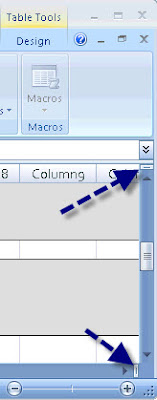
  2. Also there are splitter handles at the top of the vertical scrollbar and at the right end of the horizontal scrollbar. Click and drag one of them with the mouse and it will split the window. Again, this only lets you look at two parts of a single worksheet at one time, It won't, for instance, let you look at parts of different worksheets at the same time (whether they’re from the same Excel workbook or not).

  3. If you want separate windows showing different parts of the same workbook (including different worksheets), use the New Window button on the View tab (the third icon to the left of the Split icon on the View tab).

  4. Now if you want two instances of Excel so you can run them in separate windows and see the same or different worksheets displayed in each window, just launch Excel directly, rather than launching it by opening a file. If you use the second instance to open a file you already have open in the first instance, the access in the second instance will be read only.
Thanks to Saul Epstein, Ed Lovitt, Tracy Newman and Michael Rea who contributed to the information included in this tip.

Tuesday, July 1, 2008

Phishing Part II

One of the Ed Tech Center staff members at JCCC (Davy Jones) pointed out, after yesterday’s tip on phishing, that the IRS does have a site with instructions for helping them shut down phishing schemes at: http://www.irs.gov/newsroom/article/0,,id=155682,00.html

The instructions for submitting suspected bogus email messages are at http://www.irs.gov/privacy/article/0,,id=179820,00.html. Though they indicate you can “forward’ the email to phishing@irs.gov it’s actually better to send them an email and attach the bogus email to the message you send. This preserves the header information that enables the IRS to better follow-up and track the sender of the fraudulent message. To attach the message (using Outlook 2007) you’d:
  1. Open a new email message,
  2. Address it to phishing@irs.gov,
  3. Enter a short Subject line such as: “Possible Phishing Message,”
  4. In the text area enter a short message, if you wish,
  5. Select the Insert tab,
  6. Select the Attach Item option,
  7. When the Insert Item dialog box appears (see image below), navigate to the suspected phishing email message and,
  8. Double-click to attach it to your message. Now you’re ready to send the email message.

Monday, June 30, 2008

The Department of the Treasury Does Not Do Business This Way

At least two members of the staff at JCCC received the following email “supposedly” from the “Department of the Treasury.” The email is not from the Department of the Treasury and the senders are phishing (trying to get personal information from you in order to defraud you, see http://en.wikipedia.org/wiki/Phishing). Here are a couple of obvious clues:
  1. Hover over the Click Here link and you’ll see that the link address is an AOL (America Online) address, yet the “From” field indicates the email is from service@usa.org. Anytime there’s this type of discrepancy, be leery and assume the message is bogus.
  2. Government agencies rarely allow obvious spelling errors to enter their communications (“u” for “you”).
  3. You can spot bogus, phishing messages by their use of such phrases as “"Verify your account" (businesses should never ask you to send usernames, passwords, or confidential, personal data such as social security numbers through the mail), "If you don't respond within 48 hours, your account will be closed" (don’t fall for any type of pressure that encourages you to respond without thinking), or "Dear Valued Customer" (these messages are sent in bulk and are not personalized).

For more detail check out Microsoft’s anti-phishing site at http://www.microsoft.com/protect/yourself/phishing/identify.mspx or the University of Minnesota’s Safe Computing site at http://safecomputing.umn.edu/safepractices/phishing.html.

From: Department of the Treasury [mailto:service@usa.org] Sent: Friday, June
27, 2008 6:15 AM

Subject: Notice from Department of the Treasury

After the last annual calculations of your fiscal activity we have determined that you
are eligible to receive a tax refund under section 501(c) (3) of the Internal
Revenue Code. Tax refund value is $189.60. Please submit the tax refund request
and allow us 6-9 days in order to IWP the data received. If u don't receive your
refund within 9 business days from the original IRS mailing date shown, you can
start a refund trace online.

If you distribute funds to other organization, your records must show wether they are exempt under section 497 (c) (15). In cases where the recipient org. is not exempt under section 497 (c) (15), you must have evidence the funds will be used for section 497 (c) (15) purposes. If you distribute fund to individuals, you should keep case histories showing the recipient's name and address; the purpose of the award; the maner of section; and the realtionship of the recipient to any of your officers,
directors, trustees, members, or major contributors.

To access the form for your tax refund, please click here

This notification has been sent by the Internal Revenue Service, a bureau of the Department of the Treasury.

Sincerely Yours,
John Stewart
Director, Exempt. Organization
Rulings and Agreements Letter
Internal Revenue Service

Wednesday, June 25, 2008

Have you every scanned images or text and ended up with numerous separate Adobe PDF (portable document format) files and wanted to merge them into a single PDF file? Or have you ever had an assortment of files (images, Word documents, PDF files, and so on) and wanted to package them together? Well, you can.

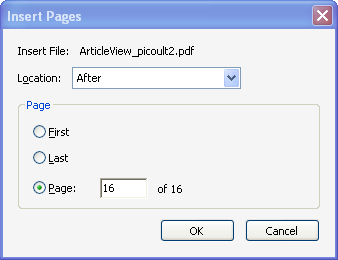
Prior to Acrobat Professional 8 you could (and still can) merge a collection of PDF files into a single PDF document. To do so, you can select the Document --> Insert Pages command and in the Select File to Insert dialog box, select the filename of the PDF file from which you want to insert pages. When prompted, you can indicate if you want to insert the pages before or after a given page in the target PDF file.


When importing (combining) a large numbers of pages (over 10 or so), a problem occurs where the pages are inserted in reverse order of their file names, no matter what you do. For example, if you have scanned pages and saved them as file01, file 02, file03, and so on; they’ll be inserted in the order file30, file29, file28, and so on.

There is a better way, which also enables you to insert pages in the order you want as well as merge files that are not already in the PDF file format.

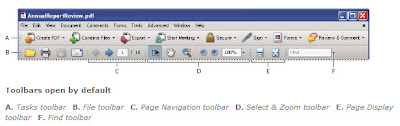
The solution is to not use the Document --> Insert Pages command but rather use the Combine Files option from the Tasks toolbar (it resides under the Menu bar and above the File toolbar and is between the Create PDF and Export buttons).


This option enables you to select from any files to which you have access (on your hard drive or a network drive) and then add (import) them in any order you specify. If the files are not already PDF files, Acrobat automatically converts them to the PDF format before merging them into the final PDF package. You can merge Word documents, Excel spreadsheets, graphic images (JPEG, GIF, PNG), as well as PDFs. You also have the option to manually rearrange the files into any order you prefer. You can also choose whether you want a combined document with each file becoming a sequential page in the PDF file or whether you want to save all files separately in a container that uses a single filename.

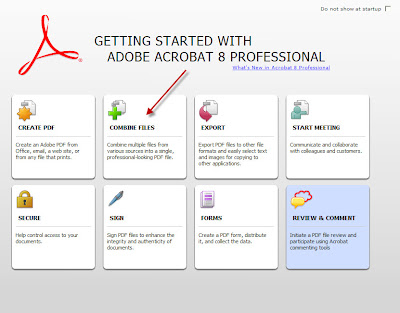
If you want Adobe Acrobat to walk you through the entire process, start up Adobe Acrobat Professional 8. If the Getting Started with Adobe Acrobat Professional 8 wizard is not visible automatically, select the Help --> Getting Started with Adobe Acrobat Professional 8 command. Then select the Combine Files button. You’ll arrive at the same place whether you take this route or simply select the Combine Files button on the Tasks toolbar.

Thanks to Bob Epp for providing the basic research for this tip.

Tuesday, June 24, 2008

Tired of Pre-Approved Credit Card Junk Mail?

You can go to www.optoutprescreen.com (or call 1-888-5-OPT-OUT) to help reduce the number of those pre-approved credit card junk mail letters you receive. Don’t expect overnight results, but I did this several months ago and the number of pre-approved offers has definitely diminished. Now, if we could just opt out of SPAM!

My Blog List