Tuesday, September 23, 2008

Check Out Your Bank

With the nation’s financial crisis making headlines, it makes sense to use the technology to assist in making financial decisions. So, use your browser to visit http://www.bankrate.com/ and check out the rating for the bank, thrift or credit union where you store your money each payday.

Once you arrive at the bankrate.com site, look for the “Is Your Bank Safe” article under the Spotlight banner. The text “Safe and Sound Ratings” is a link to a page where you can start your search. First you’ll select whether you want to search banks/thrifts or credit unions. After making your choice and selecting the Next button, you’ll narrow the search by zip code, state, starting alpha character (e.g., the institution’s name) or other criteria. Follow the on-screen instructions and you’ll end up with the Safe & Sound CAEL rating (the lower the number, the better, but 1, 2 or 3 is considered good) or the Star Rating (more stars are better with 5 stars being tops) for the bank, thrift or credit union you select. See http://www.bankrate.com/brm/safesound/cael_explain.asp for more details on the rating systems.

Put technology to work on checking out your bank’s rating.

Monday, September 8, 2008

Fact Checkers

I received yet another email message from the Department of the Treasury this morning stating I have a $189.60 tax refund coming (I only need to click on a link that goes to an AOL site!). That coupled with similar messages received a month ago mean I can fill up my car this week. But I won’t really count on it.

There are two sites that have been very handy lately. Both enable me to check the facts. The first is www.snopes.com where I often check various email “facts” such as:
  • Presidential candidate Barack Obama is a “radical Muslim” (false),
  • Presidential candidate John McCain declared during a 60 Minutes interview that he was a “war criminal” who “bombed innocent women and children” (false),
  • The USS New York was made using steel from the World Trade Center (true),
  • You can cook an egg or popcorn if placed between two activated cell phones (false), and
  • That an email greeting card from a family member may include a malicious virus (true, but generally only unpatched Windows-based systems are vulnerable and to infect your system you must click a link that goes to server with malware). Note, always hover over any link in any message and if the web address displayed on your status bar is inconsistent with a real online greeting card site (such as www.hallmark.com or www.egreetings.com or www.bluemountain.com) or the site you expect the link to go to, don’t go there.

The other site I use to check facts is http://www.factcheck.org/. The site is a project of the Annenberg Public Policy Center of the University of Pennsylvania and identifies itself as “a nonpartisan, nonprofit, ‘consumer advocate’ for voters that aims to reduce the level of deception and confusion in U.S. politics.” The Annenberg Political Fact Check monitors “the factual accuracy of what is said by major U.S. political players in the form of TV ads, debates, speeches, interviews, and news releases.” Their goal “is to apply the best practices of both journalism and scholarship, and to increase public knowledge and understanding.”

So check your facts…before you pass them on.

Tuesday, September 2, 2008

Microsoft Office Help

Microsoft publishes an online newsletter (the Microsoft Office Insider) with tips, news, latest support articles, templates and clip art. To subscribe, check out http://office.microsoft.com/en-us/help/HA101864261033.aspx. As an example, the August issue includes the following tip:

Do you e-mail documents to yourself or others?
There's a new development that's faster and easier. Download this plug-in for Microsoft Office Word, Excel, and PowerPoint and save documents to a free Workspace on the web. Access, view, and share documents with the people you invite - anytime! Here's the free plug-in. http://go.microsoft.com/?linkid=9382158. What's a Workspace? http://go.microsoft.com/?linkid=9382159.

Saturday, August 23, 2008

"Virtual" Student Response Systems

Yesterday’s tip talked about clickers in the classroom (see http://technotipster.blogspot.com/2008/08/clickers-in-classroom.html) and mentioned ResponseWare Web. That’s a “revolutionary” new response system that enables classroom or audience participants to engage in polling using a mobile device (PDA, cell phone), laptop, desktop or handheld clicker from TurningPoint Technologies. “As a web-based polling application, ResponseWare Web allows participants to submit responses via any device with access to the internet and immediately transfers results to TurningPoint's interactive polling slides” (see http://www.turningtechnologies.com/governmentnonprofitinteractivepresentation/governmentresponsewareweb.cfm).

It’s important to note that you can “mix and match” response devices. Whether participants are students in a classroom, committee members in a face-to-face meeting or remote conferees (connected via a webinar session or conference call); the presenter, chair or speaker can gather anonymous feedback from participants:
  • If responders are using a device that connects to the web (cell phone, PDA, laptop), either in the meeting or remotely or
  • If responders are using a TurningPoint clicker (either RF or XR) and located in the same location as the speaker (within range of the TurningPoint access point).

“Without using their voices” this product enables anonymous audience participation. After allowing a period for polling, the speaker, instructor, chair, or facilitator can display a graph of the polling results with percentages or counts using TurningPoint 2008 (works with PowerPoint) or TurningPoint Anywhere 2008 (works as an overlay with any application or web page).

Response devices that can be used instead of a handheld clicker include the Apple® iPhone™, a Blackberry®, a smartphone using Windows Mobile 5.0 or above, or any laptop or standard computer with wired or wireless access to the Web.

Using this technology, you can move along the agenda and gather feedback whether your “audience” is face-to-face or in remote sites; e.g., students in classrooms, students in distance learning courses, committee members teleconferencing from remote sites, and so on.

Thursday, August 21, 2008

Clickers in the Classroom

Student response systems (affectionately called clickers) are being integrated into instruction at both the high school and college level. This semester, we have over 20 faculty members at JCCC using the TurningPoint clicker system. TurningPoint Technologies offers three different applications for use with their clicker system: TurningPoint 2008 (which works hand-in-hand with PowerPoint to add special interactive slides with questions and then displays the responses received from students in graph form), TurningPoint Anywhere 2008 (which overlays any computer application and can be used to poll, survey, collect and display student responses; e.g., you can use the overlay on top of a screen displaying a Word document, a web site, an Excel document, or literally any application), and ResponseWare Web (which collects student responses using a web site; that is, it can be used in a classroom where all students have access to a computer or it can be used when students have their own wireless laptop or cell phone with Internet access). ResponseWare Web can also be used with distance learning students, since only web access is required…no student clicker is needed..

If you’re one of those faculty members using TurningPoint, one of the first lessons we try to teach is that after installing the software, users should set the default option for the TurningPoint 2008 add-in to always appear in PowerPoint. If you do so, you don’t need to open TurningPoint 2008 and then open a PowerPoint slideshow. With the option set, you can simply open PowerPoint and the TurningPoint 2008 add-in is loaded automatically and available. To turn on this setting:

  1. Open TurningPoint 2008.
  2. Select the TurningPoint tab (in Office 2007 version).
  3. Select the Tools > Settings command.
  4. In the Presentation settings (select in the left panel), under the Misc section (you’ll need to scroll down in the right panel), change the value for “Add-In always loaded” to True (click on the word False and use the drop-down to select True).
  5. Click Done (bottom of window).

You only have to do this once and then TurningPoint will always be loaded when you start PowerPoint. Then you can dispense with the TurningPoint desktop shortcut if you wish.

Wednesday, August 20, 2008

Sharing & Finding PowerPoint Slideshows

A basic premise of Web 2.0 is that users collaborate, publish and share digital resources. Slideshare qualifies because it is a repository of PowerPoint slideshows that are contributed by the creators, can be viewed, downloaded and used by others (as always giving credit is both neighborly, judicious and appropriate). http://www.slideshare.net/ is a searchable archive of slideshows covering topics from Aljazeera to the Olympics to Zoology and everything inbetween. Visit the site, use the search box to enter a keyword (“copyright,” “web 2.0,” “conflict management,” or whatever) for the topic you’re researching and you’ll (probably) find a host of slideshows.

Once you locate the topic you seek, you can view the slideshow (clicking through a page at a time), display it full screen, download it, and leave comments (or view the comments of others). If you create an account and log-in, you can upload your own slideshows (if you want to share them; in PDF, PPT, PPS, POT, ODP or keynote format), locate and download presentations (if the creator enables the download), embed slideshows in a blog or website, and create a slidecast by linking your slides to an audio track. You can also enroll in a “group” and receive email alerts when anyone posts a slideshow or message related to that topic.

To check out a couple slideshows I’ve posted on “Web 2.0” and “copyright,” see http://www.slideshare.net/jbacon.

Tuesday, August 19, 2008

Mind-Mapping & Web 2.0

What tools are available for instructors to develop instructional materials or for use in instruction? How do you locate one of the plethora of Web 2.0 apps that meet your instructional or course development needs? To address that issue, I populated a mind map for "The Instructor's Digital Toolkit: A Show & Tell Session," a presentation for the Kansas City Professional Development Council Conference at Ottawa University last March 1, 2008. Then I updated the mind map for use at a similar presentation for the Summer Institute on Distance Learning and Instructional Technology (SIDLIT) held at JCCC on July 31 and August 1, 2008.
Specifically, the mind map is but a single example of what can be accomplished using a tool like Mindomo. Mind mapping can be used:
  • To document classroom brainstorming sessions,
  • To develop a timeline,
  • To organize tasks,
  • To flowchart processes,
  • To cluster ideas,
  • To present information in a classroom or for a presentation (instead of using a PowerPoint slideshow).

In the example at http://www.mindomo.com/view?m=38c41ea842988eb5177861fc90f77e46, Mindomo has been used to categorize and document a host of Web 2.0 applications (plus some desktop apps that might be useful for online and classroom instructors).

When using the mind map, hover your mouse pointer over each note icon to see related text, click the globe icon to jump to the website for the specified application, click the "+" sign to expand and display subtopics or (if visible) click the "-" sign to contract and hide subtopics.

How would you use this web 2.0 tool?

Monday, August 18, 2008

Web 2.0 and What It Really Means

From Wikipedia (commonly considered a prime example of a Web 2.0 application), Web 2.0 is defined as: “ the trend in the use of World Wide Web technology and web design that aims to enhance creativity, information sharing, and, most notably, collaboration among users. These concepts have led to the development and evolution of web-based communities and hosted services, such as social-networking sites, wikis, blogs, and folksonomies. The term became notable after the first O'Reilly Media Web 2.0 conference in 2004. Although the term suggests a new version of the World Wide Web, it does not refer to an update to any technical specifications, but to changes in the ways software developers and end-users utilize the Web.”

And what does that mean? The British Guardian newspaper further describes Web 2.0 as “an idea in people's heads rather than a reality. It’s actually an idea that the reciprocity between the user and the provider is what's emphasised. In other words, genuine interactivity, if you like, simply because people can upload as well as download.”

Web 2.0 is really a concept that identifies tools which:
  1. Use the Internet as their platform (e.g., the application resides on the web and not necessarily on your desktop),
  2. Enable web authors (e.g., publishers) and web users (e.g., readers) to easily collaborate and co-publish, and
  3. Breaks down the barriers between publishers and readers (e.g., we all become publishers, contributors, editors and readers).

The best definition of Web 2.0 can be obtained by seeing “it” in action. So, let’s suppose you are one of thousands of individuals who take digital images of “places” you’ve visited. You can share those images with anyone or a select group of friends. That’s basically what Flickr, Picassa and other Web 2.0 photo sharing sites enable you to do. But let’s take it a step further. Suppose you want to see not just a 2D photographic image of a landmark, historic site or location, but also want to “contribute” toward a virtual 3D view of that “place.” That’s what Microsoft Photosynth does. It takes hundreds if not thousands of images, aligns and synchronizes them so that users can see the combined photographic contributions of “the many” in order to view a “unified 3D version” of the image. To quote Microsoft’s site at http://labs.live.com/photosynth/, “what if your photo collection was an entry point into the world, like a wormhole that you could jump through and explore?”

The following video was presented at SIGGRAPH to demonstrate what the university of Washington and Microsoft Research have been able to accomplish using this tool. Check out http://phototour.cs.washington.edu/findingpaths/.

Now that’s Web 2.0. It’s collaborative, utilizes the best work of all contributors, while breaking down the artificial barriers between publisher, editor, artist, contributor, and reader…and make us all..all of the above. Tomorrow, we’ll talk about yet another Web 2.0 tool and how it can be used in instruction.

Wednesday, July 30, 2008

Your Digital Toolkit: Lesser Known Web 2.0 & Desktop Apps

The Summer Institute on Distance Learning and Instructional Technology (SIDLIT, pronounced "sidelight") returns to Johnson County Community College on Thursday and Friday, July 31 and August 1, 2008 with over 380 attendees registered. The conference, in it's 9th year, is sponsored by Colleague to Colleague and includes sessions on topics from ANGEL to blogs and wikis.

One of my sessions (on Friday, August 1st) covers "Your Digital Toolkit: Lesser Known Web 2.0 & Desktop Apps." It's described in this way: "If you've heard about Web 2.0, you've heard about blogs, wikis and social networks. But what web 2.0 tools are available for your digital toolkit beyond the basics? This session begins with a quick survey of Web 2.0, desktop and rich Internet applications (RIAs) that may be useful for personal and instructional purposes (both classroom and online)."

The handout for the session is this blog entry and includes a del.icio.us link to each of the web 2.0 tools and desktop apps that I'll discuss. The list of tagged items is available at http://delicious.com/jbacon/SIDLIT2008?sort=alpha&order=asc.

To be sure everyone understands the language, I'll begin with a brief explanation of the differences between web 1.0 and web 2.0. My definition will focus on the following basic comparison.

Web 1.0 to Web 2.0 represents a shift:
  1. From personal bookmarking to shared tagging,
  2. From permissions, centralized security and control to radical trust, every person involvement and decentralization,
  3. From text & graphics to media rich, participatory, web experiences,
  4. From versions and scheduled releases to continuous improvement where products are always in beta,
  5. From static web publishing with limited, restricted roles to dynamic, interactive participation where everyone's an author, contributor, editor, reviewer and owner using rich Internet tools (RIAs) available to everyone, anytime, online.

The tools I'll discuss are in the del.icio.us list (link above) but I've linked to a few specific examples of content created using these tools (below).

Finally, to keep up on Web 2.0 news, I subscribe to http://news.cnet.com/webware/ (RSS feed, email, lots of options). Good place to get news on new apps, losers and winners.

Monday, July 7, 2008

Splitting Worksheet Windows

The question came up recently “How do you split the window in Excel so you can see a spreadsheet (usually referred to as a worksheet) in two different windows.” There are several answers depending on your needs.

  1. After loading a document (workbook) in Excel 2007, go to the View tab and select the Split option. The current document window will be split and you can scroll either window (on the same document) independently of the other.
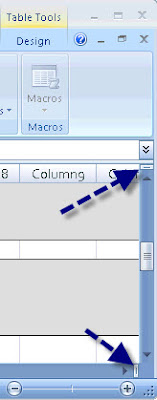
  2. Also there are splitter handles at the top of the vertical scrollbar and at the right end of the horizontal scrollbar. Click and drag one of them with the mouse and it will split the window. Again, this only lets you look at two parts of a single worksheet at one time, It won't, for instance, let you look at parts of different worksheets at the same time (whether they’re from the same Excel workbook or not).

  3. If you want separate windows showing different parts of the same workbook (including different worksheets), use the New Window button on the View tab (the third icon to the left of the Split icon on the View tab).

  4. Now if you want two instances of Excel so you can run them in separate windows and see the same or different worksheets displayed in each window, just launch Excel directly, rather than launching it by opening a file. If you use the second instance to open a file you already have open in the first instance, the access in the second instance will be read only.
Thanks to Saul Epstein, Ed Lovitt, Tracy Newman and Michael Rea who contributed to the information included in this tip.

Tuesday, July 1, 2008

Phishing Part II

One of the Ed Tech Center staff members at JCCC (Davy Jones) pointed out, after yesterday’s tip on phishing, that the IRS does have a site with instructions for helping them shut down phishing schemes at: http://www.irs.gov/newsroom/article/0,,id=155682,00.html

The instructions for submitting suspected bogus email messages are at http://www.irs.gov/privacy/article/0,,id=179820,00.html. Though they indicate you can “forward’ the email to phishing@irs.gov it’s actually better to send them an email and attach the bogus email to the message you send. This preserves the header information that enables the IRS to better follow-up and track the sender of the fraudulent message. To attach the message (using Outlook 2007) you’d:
  1. Open a new email message,
  2. Address it to phishing@irs.gov,
  3. Enter a short Subject line such as: “Possible Phishing Message,”
  4. In the text area enter a short message, if you wish,
  5. Select the Insert tab,
  6. Select the Attach Item option,
  7. When the Insert Item dialog box appears (see image below), navigate to the suspected phishing email message and,
  8. Double-click to attach it to your message. Now you’re ready to send the email message.

Monday, June 30, 2008

The Department of the Treasury Does Not Do Business This Way

At least two members of the staff at JCCC received the following email “supposedly” from the “Department of the Treasury.” The email is not from the Department of the Treasury and the senders are phishing (trying to get personal information from you in order to defraud you, see http://en.wikipedia.org/wiki/Phishing). Here are a couple of obvious clues:
  1. Hover over the Click Here link and you’ll see that the link address is an AOL (America Online) address, yet the “From” field indicates the email is from service@usa.org. Anytime there’s this type of discrepancy, be leery and assume the message is bogus.
  2. Government agencies rarely allow obvious spelling errors to enter their communications (“u” for “you”).
  3. You can spot bogus, phishing messages by their use of such phrases as “"Verify your account" (businesses should never ask you to send usernames, passwords, or confidential, personal data such as social security numbers through the mail), "If you don't respond within 48 hours, your account will be closed" (don’t fall for any type of pressure that encourages you to respond without thinking), or "Dear Valued Customer" (these messages are sent in bulk and are not personalized).

For more detail check out Microsoft’s anti-phishing site at http://www.microsoft.com/protect/yourself/phishing/identify.mspx or the University of Minnesota’s Safe Computing site at http://safecomputing.umn.edu/safepractices/phishing.html.

From: Department of the Treasury [mailto:service@usa.org] Sent: Friday, June
27, 2008 6:15 AM

Subject: Notice from Department of the Treasury

After the last annual calculations of your fiscal activity we have determined that you
are eligible to receive a tax refund under section 501(c) (3) of the Internal
Revenue Code. Tax refund value is $189.60. Please submit the tax refund request
and allow us 6-9 days in order to IWP the data received. If u don't receive your
refund within 9 business days from the original IRS mailing date shown, you can
start a refund trace online.

If you distribute funds to other organization, your records must show wether they are exempt under section 497 (c) (15). In cases where the recipient org. is not exempt under section 497 (c) (15), you must have evidence the funds will be used for section 497 (c) (15) purposes. If you distribute fund to individuals, you should keep case histories showing the recipient's name and address; the purpose of the award; the maner of section; and the realtionship of the recipient to any of your officers,
directors, trustees, members, or major contributors.

To access the form for your tax refund, please click here

This notification has been sent by the Internal Revenue Service, a bureau of the Department of the Treasury.

Sincerely Yours,
John Stewart
Director, Exempt. Organization
Rulings and Agreements Letter
Internal Revenue Service

Wednesday, June 25, 2008

Have you every scanned images or text and ended up with numerous separate Adobe PDF (portable document format) files and wanted to merge them into a single PDF file? Or have you ever had an assortment of files (images, Word documents, PDF files, and so on) and wanted to package them together? Well, you can.

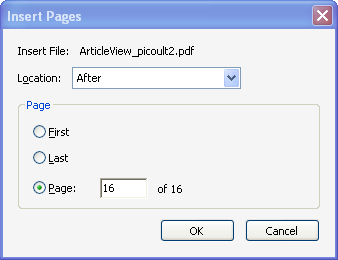
Prior to Acrobat Professional 8 you could (and still can) merge a collection of PDF files into a single PDF document. To do so, you can select the Document --> Insert Pages command and in the Select File to Insert dialog box, select the filename of the PDF file from which you want to insert pages. When prompted, you can indicate if you want to insert the pages before or after a given page in the target PDF file.


When importing (combining) a large numbers of pages (over 10 or so), a problem occurs where the pages are inserted in reverse order of their file names, no matter what you do. For example, if you have scanned pages and saved them as file01, file 02, file03, and so on; they’ll be inserted in the order file30, file29, file28, and so on.

There is a better way, which also enables you to insert pages in the order you want as well as merge files that are not already in the PDF file format.

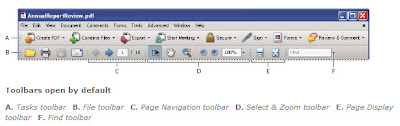
The solution is to not use the Document --> Insert Pages command but rather use the Combine Files option from the Tasks toolbar (it resides under the Menu bar and above the File toolbar and is between the Create PDF and Export buttons).


This option enables you to select from any files to which you have access (on your hard drive or a network drive) and then add (import) them in any order you specify. If the files are not already PDF files, Acrobat automatically converts them to the PDF format before merging them into the final PDF package. You can merge Word documents, Excel spreadsheets, graphic images (JPEG, GIF, PNG), as well as PDFs. You also have the option to manually rearrange the files into any order you prefer. You can also choose whether you want a combined document with each file becoming a sequential page in the PDF file or whether you want to save all files separately in a container that uses a single filename.

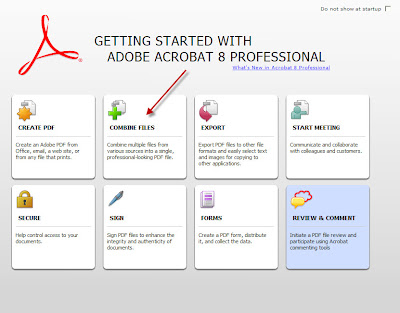
If you want Adobe Acrobat to walk you through the entire process, start up Adobe Acrobat Professional 8. If the Getting Started with Adobe Acrobat Professional 8 wizard is not visible automatically, select the Help --> Getting Started with Adobe Acrobat Professional 8 command. Then select the Combine Files button. You’ll arrive at the same place whether you take this route or simply select the Combine Files button on the Tasks toolbar.

Thanks to Bob Epp for providing the basic research for this tip.

Tuesday, June 24, 2008

Tired of Pre-Approved Credit Card Junk Mail?

You can go to www.optoutprescreen.com (or call 1-888-5-OPT-OUT) to help reduce the number of those pre-approved credit card junk mail letters you receive. Don’t expect overnight results, but I did this several months ago and the number of pre-approved offers has definitely diminished. Now, if we could just opt out of SPAM!

Monday, June 23, 2008

How Small Can You Make a Camcorder?

Digital Camcorders are getting smaller and the prices are dropping. That seems to be the general story of all technology. I’ve recently tested a Flip Video Ultra camcorder (see http://www.theflip.com/products.shtml) and found it wonderfully small (fits in a shirt pocket). It’s lightweight too. It records video on internal memory rather than on a miniDV tape. The Flip Video Ultra can record 60 minutes of video using 2GB of internal memory (the Ultra has 2GB while the regular Flip Video has 1GB). Note, the newest addition to the Flip Video family is a 2GB Flip Mino. It’s much like the Ultra except it includes an internal Lithium-Ion rechargeable battery capable of 4 hours recording between charges. It retails for $179.99.

I was pretty impressed with the 640x480 resolution image from the $149 camera, until I ran across the AIPTEK A-HD 720P digital camcorder (see http://www.aiptek.com/Merchant2/merchant.mvc?Screen=PROD&Product_Code=R-AHDB&Category_Code=DC1&Store_Code=AS) which retails at $159.99 (as low as $139.99 refurbished). While the A-HD 720P doesn’t have a snappy name (like Flip Video Ultra), it does provide high definition (HD) video recording (1280x720 using H.264 video compression) and is also an 8 megapixel still image camera and media player all rolled into one. The video you capture can be played on a high definition TV, standard TV, PC or Mac (cables are included) and enables you to record direct from a TV set as well. Some of the other significant differences include a rechargeable 1000mA Li-ion battery good for about 4 hours of recording (the Flip Video Ultra uses 2 AA batteries that give you approximately 2 hours of recording time) and the ability to use up to an 8GB SD card (the Flip Video Ultra’s memory is not expandable). The bad news is that the A-HD 720P does not come with an SD memory card, so you must buy one or you don’t have sufficient memory to record video (it comes with only 6MB internal memory). So effectively, the cost of the camcorder is $12 to $30 more than it seems. The following chart indicates how much video recording time or how many images you can store based on the SD card size and the resolution of the images/video you capture.


One negative to the A-HD 720P is it’s a bit heavier than the 5.2 oz Flip Video Ultra (can’t find an exact weight in the specs).

The A-HD video files are compressed (stored in the QuickTime .MOV format using H.264 video compression) while the Flip Video Ultra uses Pure Digital Video Engine 2.5 to compress in .AVI format. With both camcorders, it takes some practice to steady the camera and adjust the zoom (both units employ a 2x digital zoom).

Prices listed above are list and can be “beat” at http://www.amazon.com/ and other vendors. There are accessories available for both camcorders (tripods, and so on). Either choice is a giant step forward in miniaturization and price reduction.

Thursday, June 19, 2008

No Free Lunch @ Adobe Until July 1

Bob Epp, Sr. Analyst in the Ed Tech Center, alerted me to the fact that some of his Photoshop students wanted to download a trial version of Photoshop (typically good for 30 days) and found that the trial downloads (http://www.adobe.com/downloads/) are unavailable until July 1. This appears to be the case with allk Adobe trial downloads, not just Photoshop. Here is the explanation from Adobe:

During the month of June 2008, certain product trials that are launched for the first time (regardless of when they were installed) will function for only one day instead of 30 days, due to an error in a line of code that counts down the remaining days in a trial. You will not experience this issue if you have launched your trial before June 1, 2008, or do not launch it until July 1 or thereafter.

We understand that trials are an important tool to experience the new features of a product. However, this issue would have resulted in a frustrating situation for a large number of customers — an experience that just does not meet the high standards we have set for all of our products and solutions. We invite you to explore the other resources available on Adobe.com in order to experience the products in action.

While we’re discussing Adobe products, I mentioned Adobe Express in an earlier post. Christopher Boyce of the UMKC School of Medicine (Kansas City, MO) subsequently shared the following information with me:

I just wanted to mention a note about Photoshop Express, which you may already know - Adobe's terms of use: https://www.photoshop.com/express/terms.html

They have already revised it recently, due to negative feedback from their original terms, but there is still these particular terms which may not sit well with some users:

"8. Use of Your Content.

Adobe does not claim ownership of Your Content. However, with respect to Your Content that you submit or make available for inclusion on publicly accessible areas of the Services, and unless otherwise specifically agreed in any Additional Terms that might accompany individual services (such as Photoshop.com/Express), you grant Adobe a worldwide, royalty-free, nonexclusive, perpetual, irrevocable, and fully sublicensable license to use, distribute, reproduce, modify, adapt, publish, translate, publicly perform and publicly display such Content (in whole or in part) and to incorporate such Content into other Materials or works in any format or medium now known or later developed."

and

"10. Right to Derive Revenue/Advertisements.

You agree that Adobe may derive revenue and or other remuneration from the Services including from portions of the Services that include Your Content.
For example, Adobe may display Adobe and/or third party paid advertisements and other information adjacent to or included with the Services and adjacent to or in connection with Your Content, and you agree that you are not entitled to any compensation for any such advertisements. The manner, mode and extent of advertising or other revenue generating models by Adobe on or in conjunction with the Services are subject to change without specific notice to you."

...I just wanted to pass this along.

So, “buyer (or freebie user) beware.”

Wednesday, June 18, 2008

Information Please!

Nick Greenup, Sr. Analyst in the Ed Tech Center, recently shared this information with me. When Nick receives a new phone book, he slices out the coupon pages, staples them together and discards the rest of the book. With directory assistance and the Internet there’s no need to keep a bulky set of yellow pages around. Here are the ways Nick accesses the information he needs.

For residential, business, and "reverse" look up use: http://www.anywho.com. Reverse lookup is when you know the phone number and want to find out to whom it belongs. Try looking up your own information and you’ll see what’s available to anyone on the web. Helpful and scary.

When www.Anywho.com fails to locate a desired business or contact, try a Google Maps search (http://maps.google.com). Notice the Find Businesses tab at the top. You can be very general or specific with your search. For instance, try “colleges” in the What field and “Overland Park” in the Where field. You’ll see all the local educational options. Nick points out that you can also talk to Google Maps like a buddy instead of a computer program; e.g., type "pizza in overland park" or "lunch Westport" and you’ll see surprisingly good results including a list of findings and a map view with all contact info (often a picture or street view of the business too). You can also get driving directions using Google Maps.

Suppose you are not at your computer, then what? Call 1411 and pay up to $3.50 per call? No way! Try Goog411, by calling toll free 1-800-GOOG-411 (1-800-466-4411). Check out the YouTube video http://www.google.com/goog411/ for more details. There is no charge for the service and they will connect you to the desired number without charge too. If using a cell phone you can say "text message" and Google will text you the business details. If you have a phone with Internet access you can say map it and view a map/directions!

These options should cover all your “information” needs, but there’s still one more option. It’s not new, does include ads, but it’s also free. This company holds the patent for free ad-based 411 information. Simply call 800-Free-411. If you have a Skype account add the contact "FREE411USA" and when you call it using Skype you’ll be connected to the service. Nick also mentioned that “Microsoft and AT&T are also running a free 411, but I haven't tried them.”

Tuesday, June 17, 2008

Plethora of Web 2.0 Tools

Back in March 2008, I presented a workshop session called "The Instructor's Digital Toolkit: A Show & Tell Session" (at the Kansas City Professional Development Council Conference at Ottawa University). In the session I attempted to focus on the question “What tools are available to instructors with which to develop instructional materials or that might enhance the presentation of instructional materials?” Many of these tools (but not all) are part of the plethora of Web 2.0 applications. The selection of instructional tools is far greater than the typical blog, wiki, and social bookmarking apps that are commonly discussed. To illustrate the range of tools, I developed a mind map (http://www.mindomo.com/view?m=38c41ea842988eb5177861fc90f77e46) and included it in the presentation. The mind map has since been enlarged and I continue to add new apps as I hear about them (and have time to update the mind map).

When using the mind map, hover your mouse pointer over each note icon to see related text, click the globe icon to jump to the website for the application, click the "+" sign to expand and display subtopics or (if already displayed) click the "-" sign to contract and hide subtopics. In a few cases, you can expand the mind map beyond the listing of apps to display instructional examples. If you have comments or additions to the listings, please email me at (jbacon@jccc.edu).

It’s probably worth noting that many colleges (like JCCC where I work) offer in-house equivalents to many of these tools (e.g., Blackboard and Angel include blog and wiki tools, SharePoint is a collaboration tool), so many of these applications may not be supported by your college (or your company for that matter).

Monday, June 16, 2008

"You're Killing Me" said the Flash Drive

A number of reasons exist for flash drives (sometimes called pen drives) to go bad. Obviously, physical abuse of the flash drive, manufacturing errors and the like can contribute, but I’ve never had a flash drive fail. I suspect that one common mistake can greatly increase the chances of failure. If you do not disengage the flash drive properly it can contribute to the failure rate.

The proper procedure is to use the Windows "Safely remove hardware" process listed on the Windows task bar. The task bar icon looks link a small green arrow (pointing to the left and downward) which hovers over a gray rectangular object. If you remove your flash drive or other storage device without first using this feature and your system is writing files (temporary or otherwise) to the flash drive, you can corrupt the files being written which can subsequently cause the pen drive to fail.

Thursday, June 12, 2008

What is Web 2.0

Nowadays, you’ll frequently hear the term Web 2.0 or Web 2.0 apps (applications). It’s a term that’s several years old and refers to the second generation of the web (some say we’re already into Web 3.0 or Web 3D, but that discussion is for another day). If you’re curious, checkout a slideshow I put together last Summer for the Powerful Professional Conference hosted by Johnson County Community College available at http://www.slideshare.net/jbacon/personal-professional-uses-of-web-20-tools. The second slide says most of what you need to know.

In essence, Web 1.0 was a “one way street” (web publishers sent you information they wanted and publishing was restricted to those who knew the language (HTML) and had the tools (HTML editors, servers, access rights). Web 2.0, on the other hand, is participatory. Anyone with web access (a browser) has the ability to publish, contribute, comment and co-author. Tools such as wikis, blogs, and social networking apps are the epitome of Web 2.0. They provide for the “harnessing of collective intelligence” (e.g., we all contribute and the product is better, more accurate and more accessible because it is democratic, self-checked and above all else participatory.

Another way to summarize the shift from Web 1.0 to 2.0 is covered by slides 4-7 of the slideshow at http://www.slideshare.net/anantshri/web20-an-introduction-396686. By the way, http://www.slideshare.net/ site is another example of a Web 2.0 participatory, web-based application.

In upcoming tips, I’ll discuss Web 2.0 apps in more detail. You also have an opportunity to learn more at the upcoming Summer Institute on Distance Learning and instructional Technology (SIDLIT) hosted by the Colleague to Colleague organization and Johnson County Community College on Thursday, July 31 and Friday, August 1, 2008. For more information, a schedule of sessions and to register for the free conference, check out http://web.jccc.net/c2c/sidlit/.

My Blog List